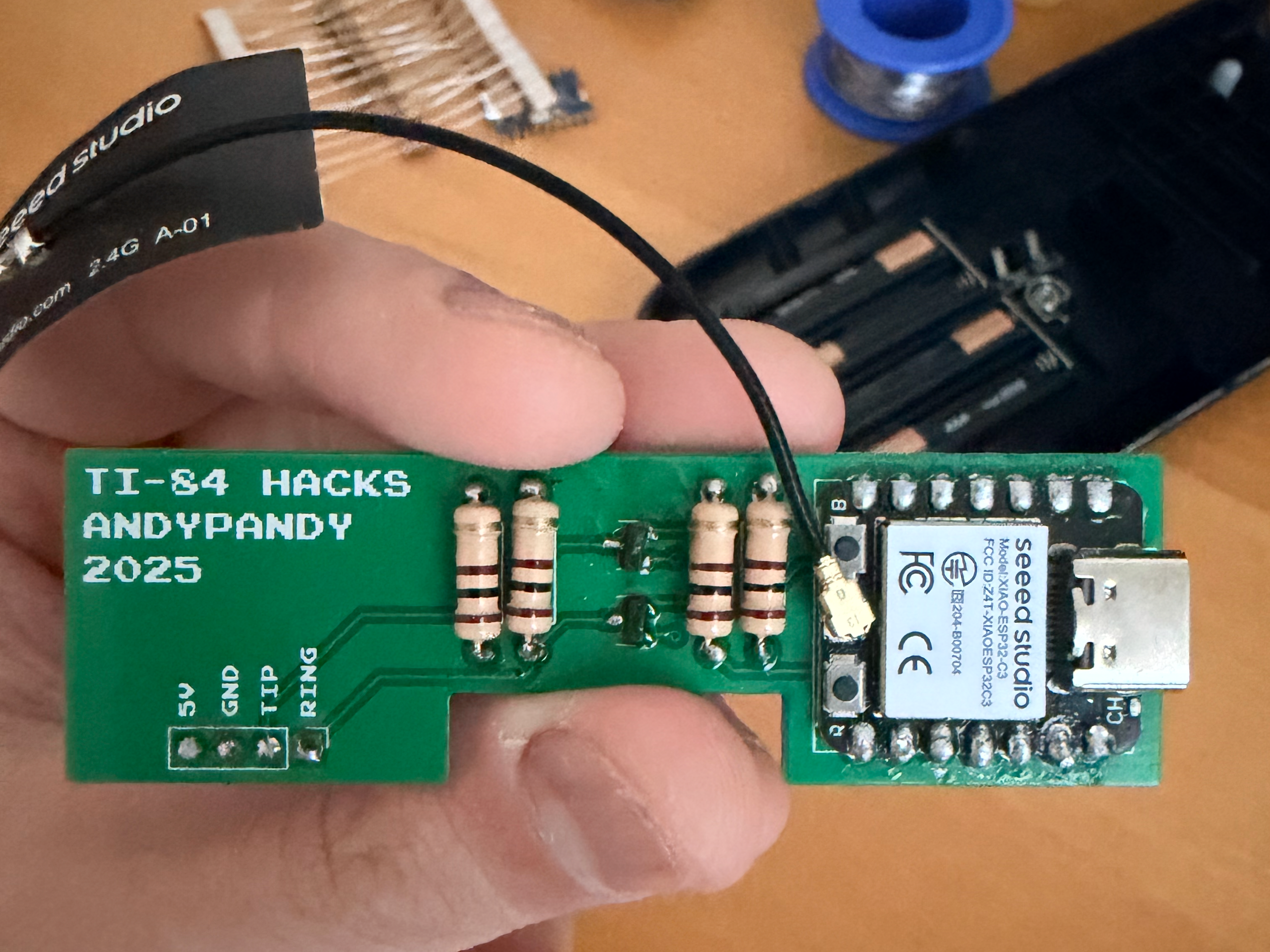
A hardware mod that gives your TI-84 calculator internet access, ChatGPT integration, and more.
Demo
About
This project turns your dusty graphing calculator into a WiFi-enabled device capable of querying ChatGPT and downloading programs over the air.
The original concept came from ChromaLock, who made a video about it back in 2024. His repo got nuked, so I rebuilt the whole thing from scratch based on what I could piece together. Most of the code, PCB design, and implementation is my own work at this point.
Author: Andy (ChinesePrince07)
Features
ChatGPT integration - ask questions directly from your calculator, with loop mode to keep asking without returning to menu
Calculus solver - derivatives, integrals, double integrals, average value, general math solver, and infinite series convergence
Physics solver - elastic and inelastic collision calculations
Utilities - translate text and define words
Wi-Fi connectivity via ESP32 with captive portal configuration
WiFi scanner - scan for nearby networks and connect directly from the calculator
WPA2-Enterprise (eduroam) - connect to university/enterprise WiFi networks via the captive portal
MAC address spoofing - view and change the ESP32's MAC address
Smart case input - letters default to lowercase; wrap in parentheses for uppercase, e.g. A(B)CD becomes aBcd
Program downloads over the air
Image display support (96x63 monochrome)
OTA updates - update both ESP32 firmware and calculator program wirelessly
Deep sleep - ESP32 sleeps after 2 minutes of inactivity to save battery, wakes instantly when the calculator sends a command
Pre-configured server - no need to run your own!
How It Works
The TI-84 has a 2.5mm link port originally designed for calculator-to-calculator communication using Texas Instruments' proprietary link protocol. This mod exploits that by wiring an ESP32 microcontroller to impersonate another calculator.
When your calculator sends a variable (like a command number), the ESP32 intercepts it using the CBL2 library, which reverse-engineers TI's protocol. The ESP32 then performs the actual work (WiFi requests, API calls, etc.) and sends the results back as calculator variables (strings, numbers, or even pictures).
The TI-BASIC launcher program on your calculator provides the UI - it sends commands to the ESP32, waits for responses, and displays the results. From the calculator's perspective, it's just talking to another calculator. It has no idea there's WiFi involved.
Building One
I'm intentionally leaving out a detailed hardware tutorial. If you know enough to build one, you probably don't need step-by-step instructions. If you don't, this isn't the project to learn on. This also keeps people from easily mass-producing these to cheat on exams.
The schematic and PCB files are in the repo if you want to figure it out yourself.
Power on your calculator and run the ANDYGPT program
Go to Settings → SETUP to broadcast the captive portal
On your phone/computer, connect to the WiFi network named "calc"
A captive portal will automatically open (or navigate to 192.168.4.1)
Enter your WiFi name and password
Click "Save & Connect"
The ESP32 will remember the settings for next time
The server is pre-configured to use my hosted instance - no need to run your own!
3. Calculator Setup
Transfer the ANDYGPT program to your calculator using Settings → Update in the launcher, or by connecting via USB.
Running Your Own Server (Optional)
By default, the ESP32 connects to my hosted server. If you want to run your own:
Set up the server:
cd server
npm install
Create server/.env and add your OpenAI API key:
OPENAI_API_KEY=sk-your-key-here
Run the server:
node index.mjs
Expose it with ngrok or similar:
ngrok http 8080
Change the server URL in /esp32/esp32.ino - find the SERVER define and update it to your ngrok URL.
Reconfiguring WiFi
If you need to change WiFi settings:
Go to Settings → MORE → SETUP in the ANDYGPT program to broadcast the captive portal
Or use Settings → SCAN WIFI to scan for nearby networks and connect directly
Or erase ESP32 flash and re-upload the firmware
Connecting to Eduroam (University WiFi)
Go to Settings → MORE → SETUP to open the captive portal
Connect to the "calc" WiFi from your phone/computer
Open 192.168.4.1 if the portal doesn't auto-open
Click the Eduroam tab
Enter your university email and password
Click "Connect to Eduroam"
Case-Sensitive Input
The TI-84 keyboard only types uppercase letters. To enter lowercase or mixed-case text (e.g. WiFi passwords):
All letters are lowercase by default
Wrap a letter in parentheses to make it uppercase: (H)ELLO → Hello
Numbers and symbols are unchanged: PASSWORD123! → password123!
Using GPT
From the main menu, select GPT
Type your question and press ENTER
Wait for the response to appear
Press any key to ask another question, or CLEAR to return to the menu
The GPT mode loops so you can have a continuous conversation without navigating back to the menu each time.
Note: Use plain text for math questions (e.g., "integrate x squared from 0 to 1") rather than calculator symbols like ∫(. The TI-84's special math tokens aren't fully decoded yet.
Using Math
From the main menu, select MATH
Choose DERIVATIVE, INTEGRAL, DOUBLE INT, SERIES, AVG VALUE, or SOLVER
Enter your function:
For derivatives/integrals: use X as the variable (e.g., X^2, sin(X))
For double integrals: enter F(X,Y), Y bounds, and X bounds when prompted
For average value: enter F(X,Y) and the region bounds
For solver: type any math problem in plain text
For series: use N as the variable (e.g., 1/N^2, 1/2^N)
The result appears instantly
Press any key for another calculation, CLEAR to go back
Examples:
Derivative of X^3 → 3 X^2
Integral of X^2 → 1/3 X^3 + C
Double integral of X*Y with Y=0..1, X=0..2
Average value of X*Y over rectangle [0,4] x [0,3]
Solver: evaluate integral 0 to 1 of integral 0 to 1-x of x+y dy dx
Series 1/N^2 → converges (pi^2/6)
Using Physics
From the main menu, select PHYSICS
Choose ELASTIC or INELASTIC
Enter values as: M1,V1,M2,V2 (masses and velocities)
The result shows the final velocities
Press any key for another calculation, CLEAR to go back
OTA Updates
Both the ESP32 firmware and the calculator launcher program can be updated over-the-air:
Go to Settings → UPDATE on your calculator
The ESP32 checks the server for a new version
If available, it flashes the new ESP32 firmware and reboots
After reboot, the updated launcher program is automatically pushed to your calculator
To check your current version and the latest available, go to Settings → VERSION.
Troubleshooting
ESP32 not responding: Check your TIP/RING connections. They might be swapped.
WiFi won't connect: Make sure you're connecting to a 2.4GHz network. The ESP32-C3 doesn't support 5GHz.
ChatGPT returns garbage: The response might contain characters the calculator can't display. Working on it.
Calculator freezes: The link protocol is timing-sensitive. Try again, or power cycle both devices.
Planned Features
Multi-page GPT responses
Basic web browsing
Camera support (ESP32-S3)
Known Issues
Images don't work consistently
Complex math expressions (integrals, derivatives, summations) use TI tokens that aren't decoded yet - type questions as plain text instead of using math symbols